 19. October 2026
HOW TO STOP APPS FROM TRACKING YOUR LOCATION.
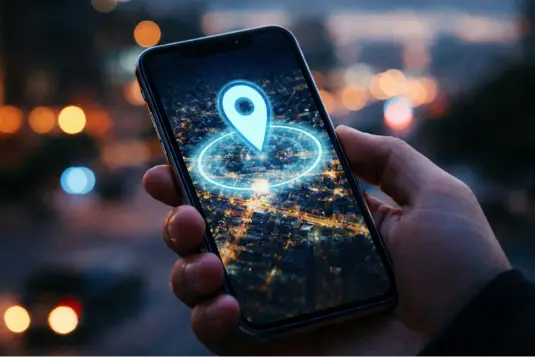
Many smartphone applications ask for your location to deliver local weather, navigational maps, or regional news. However, many of these programs continue collecting your location in the background long after you close them. Apps often include built-in code from advertising networks and data brokers that automatically logs your movement patterns. This continuous monitoring creates a detailed record of your daily habits, which is packaged and monetized for targeted ads or market research. Fortunately, regaining control of your privacy is simple once you know how to audit and adjust your device settings.
How to audit and control your location permissions
Protecting your digital privacy begins with choosing exactly when and how software accesses your movement data. Do the following:
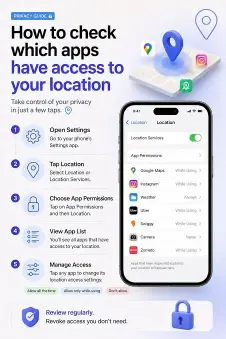
1. Review iOS location permissions
Apple devices offer clear settings for managing location access per application.
- Open your Settings app.
- Scroll down and tap Privacy & Security, then select Location Services.
- Review the list of installed applications to see their current access levels: Never, Ask Next Time or When I Share, While Using the App, or Always.
- Change the setting from Always to While Using the App, Ask every time, or Don’t allow.
2. Manage Android location settings
Android features a similar permissions manager designed to control GPS and sensor tracking across your device.
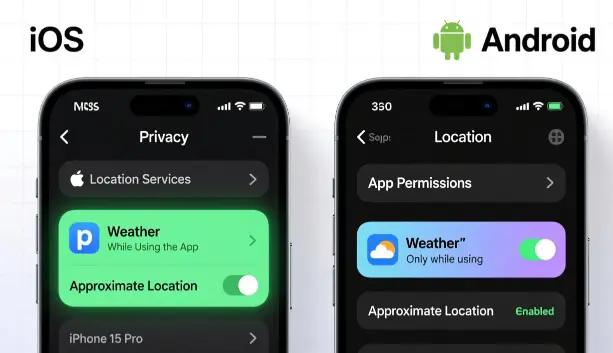
- Open Settings and tap Location.
- Select App location permissions to view settings grouped by access level (Allowed all the time, Allowed only while in use, or Not allowed).
- Select any app to update its tracking status. Restricting background access prevents programs from logging your position silently throughout the day.
3. Disable precise location sharing
Not every app needs to know your exact street address to be useful. Weather trackers, search engines, and news tools generally only need your general city or regional area to deliver accurate results.
- On iOS: Go to Settings, then Privacy & Security, select Location Services, tap the specific application, and toggle off Precise Location.
- On Android: Go to Settings, Location, App location permissions, tap the app, and switch off Use precise location.
Disabling precision ensures apps receive only approximate geographic data rather than pinpoint coordinates.
4. Delete unused applications
Phones quickly accumulate digital clutter from forgotten downloads, games, or trial tools. Even if you haven’t opened an app in months, it may still hold active background permissions granted when you first installed it.
Make it a habit to audit your apps periodically and uninstall software you no longer use. If an application demands continuous location access without a clear, functional reason, deleting it entirely is the safest way to protect your personal data.

Conclusion
Securing your personal data comes down to active management rather than relying on default smartphone settings. Routinely reviewing application permissions limits how much information third parties gather about your daily routine. Taking just a few minutes to tweak these controls puts you back in charge of your personal location history.
How often do you check your phone’s privacy settings? Let us know in the comments below.
Sources
- How to stop apps from tracking your location on phone
- How to Prevent Specific Apps from Accessing Your Location on
- How to stop random apps from tracking you