


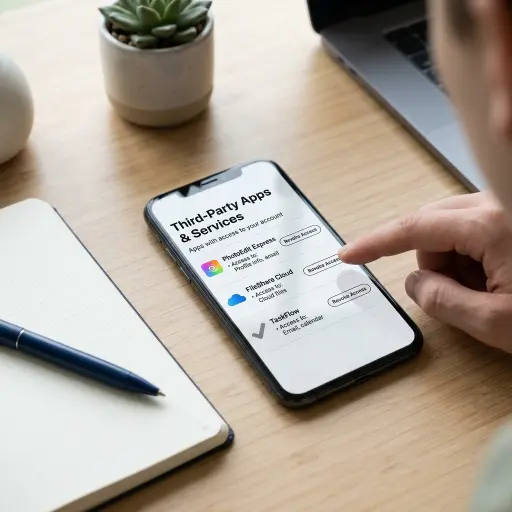

Many apps, websites, and games connect to your Google account for quick sign-ins or access to specific data. However, these connections can remain active long after you stop using a service. Reviewing your connected apps helps you identify outdated permissions, recognize unfamiliar services, and limit unnecessary access to your personal information.
How to check connected apps in your Google account
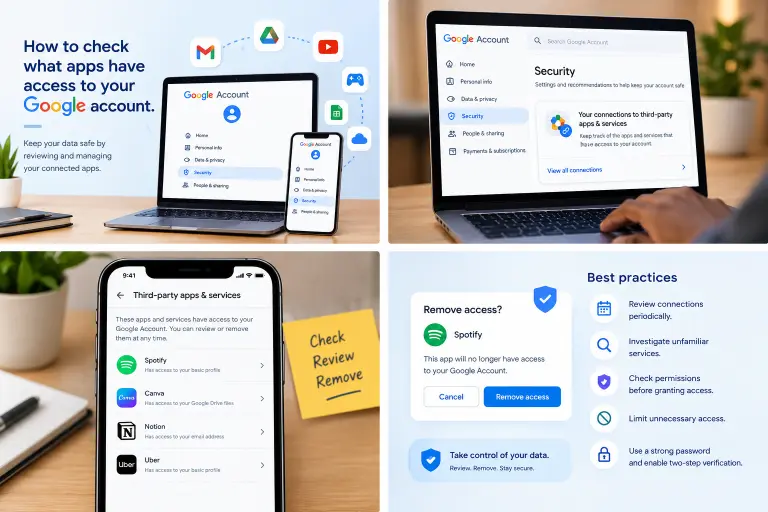
You can view the third-party apps and services connected to your Google account through your account settings. The process works on both computers and mobile devices:
- Open your browser and visit Google Account.
- Select Security from the navigation menu.
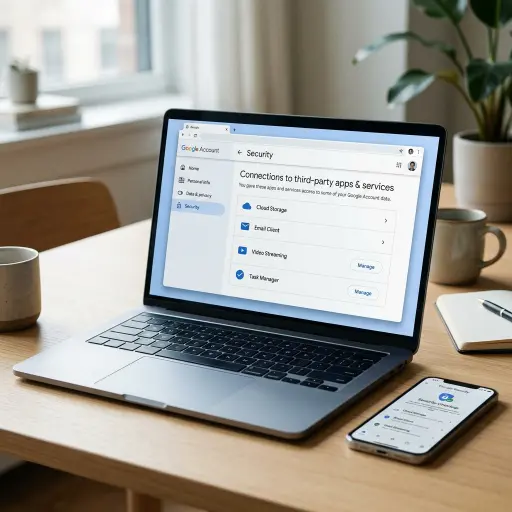
- Find the section labeled Your connections to third-party apps & services.
- Select the option to view all connections.
- Open individual apps or services to review their access permissions.
Google may update its interface or change the wording of these options, but the Security section remains the primary place to manage third-party connections.
How to review app permissions
Not every connected app has the same level of access. Some services use your Google account only for sign-in, while others request permission to access specific information.
Select each app in your connections list to see the permissions it has been granted. Depending on the service, these may include your basic profile information, email address, or Google Drive files.
Pay particular attention to apps you no longer use, services you do not recognize, and connections that request more information than they need.
An unfamiliar app is not automatically malicious, but you should investigate it before allowing it to retain access. If you cannot identify the service or understand why it needs your data, consider removing its permissions.
How to remove third-party app access
If you no longer trust an app or have no reason to keep it connected, you can revoke its access through your Google Account settings:
- Open your Google Account security settings.
- Locate your third-party app and service connections.
- Select the app or service you want to disconnect.
- Choose the option to delete its connections or remove access, depending on the interface.
- Confirm your decision if prompted.
Once access is revoked, the service can no longer use the permissions granted through that Google connection. However, this does not necessarily delete your account on the third-party platform or remove data the service has already stored. You may also need to use another sign-in method to access that service in the future.
Best practices for managing Google account permissions
Regularly reviewing connected apps helps reduce unnecessary data access. Follow these practices to keep your account better protected:
- Review connections periodically: Check your third-party app permissions every few months and remove connections you no longer need.
- Investigate unfamiliar services: Before removing an app, verify its identity if you are unsure whether you use it.
- Check permissions before granting access: Read the information an app requests before selecting “Allow”.
- Limit unnecessary access: Avoid granting permissions that are unrelated to the service’s purpose.
- Secure your Google account: Use a strong, unique password and enable two-step verification to add another layer of protection.
These habits help you maintain control over which services can access your Google account information.
Conclusion
Review your connected apps and remove access you no longer need. Have you found any unfamiliar apps connected to your Google Account? Share your experience in the comments.
Source