

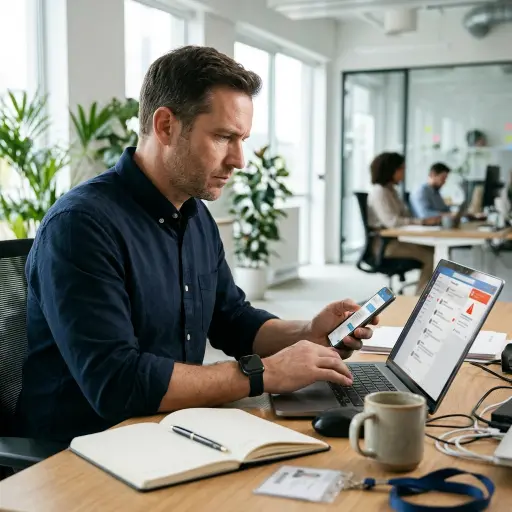

A hacked LinkedIn account can put your professional reputation and network at risk. An unauthorized person may change your profile information, send fraudulent messages to your connections, publish spam, or prevent you from accessing your account. Acting quickly can help you recover access, remove unauthorized changes, and protect your professional information.
Recognizing the signs of a compromised LinkedIn account
An account may be compromised without your knowledge, and suspicious activity can continue before you notice any warning signs. Watch for the following indicators:
- Unfamiliar posts, articles, comments, or reactions appearing on your profile.
- Messages sent to your connections that you did not write.
- Unexpected changes to your headline, work experience, profile summary, or contact information.
- Notifications about sign-ins or password changes you did not initiate.
- Difficulty logging in because your password or registered email address has changed.
- New connections or follows that you do not recognize.
What to do if your LinkedIn account is hacked
Step one: Attempt to log in and reset your password
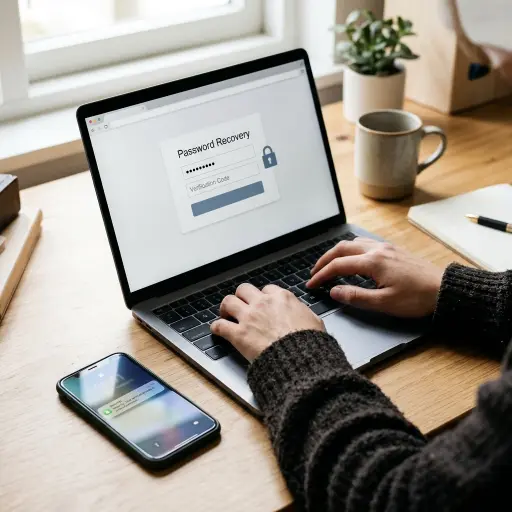
If you can still access your LinkedIn account, change your password immediately. If your existing password no longer works, use the password recovery option.
- Visit the LinkedIn login page.
- Select Forgot password?
- Enter the email address or phone number associated with your account.
- Follow the verification instructions to receive and enter the security code.
- Create a new, strong password that you have not used on other websites.
If you no longer have access to your registered email address or phone number, select the available alternative recovery option and follow LinkedIn’s instructions.
Step two: Report the compromised account to LinkedIn
If you cannot recover your account through the standard password reset process, report the unauthorized access directly to LinkedIn.
- Visit LinkedIn’s Report a compromised account support page.
- Select the option for reporting unauthorized account access or changes.
- Complete the required information and provide your LinkedIn profile URL if available.
- Describe the unauthorized activity, including any changes to your password, email address, phone number, or other account details.
- Follow the instructions provided by LinkedIn to verify your identity and regain access.
LinkedIn may request identity verification through its verification provider, Persona. Depending on the recovery process, you may need to submit a clear image of a valid government-issued identification document, such as a passport or driver’s licence. Other verification options may also be available.
Only submit identification through the official LinkedIn recovery process.
Step three: Secure your account and remove unauthorized access
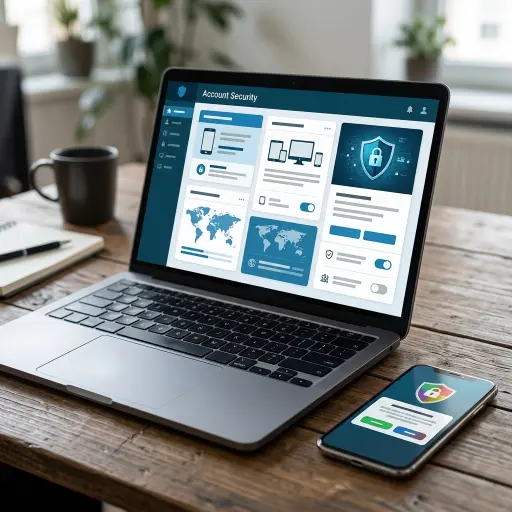
Recovering your profile does not automatically mean that every unauthorized access point has been removed. Review your account settings carefully to prevent further interference.
- Check your email addresses and phone numbers: Open your account’s sign-in and security settings. Confirm that all registered email addresses and phone numbers belong to you and that you can access them. Remove unfamiliar contact details.
- Review active sessions: Go to Settings & Privacy, select sign in & security, and open Where you’re signed in. Review the devices and locations listed. End any sessions you do not recognize, or use the option to sign out of all other sessions.
- Review connected applications: Open the partners & services section under Account preferences. Check the third-party services connected to your LinkedIn account and remove permissions for applications you no longer recognize or use.
- Enable two-step verification: Turn on two-step verification to add another layer of protection against unauthorized logins.
Step four: Check your profile and notify your connections
A compromised LinkedIn account may have been used to impersonate you or distribute fraudulent content. Review your recent messages, posts, comments, reactions, connections, and follows. Delete unauthorized content and reverse unfamiliar account activity where possible.
If suspicious messages or links were sent to your professional connections, notify them that your account was compromised. Ask them to ignore the messages, avoid clicking suspicious links, and disregard any unusual requests for money or personal information.
Preventing future LinkedIn account takeovers
Protecting your professional profile requires consistent security practices.
- Use unique passwords: Create a long, strong password that is not shared with other accounts. A password manager can help generate and store secure credentials.
- Enable two-step verification: Use an authenticator app or another verification method supported by LinkedIn to add another login security layer.
- Secure your email account: Protect the email address linked to LinkedIn with a strong password and two-factor authentication.
- Avoid suspicious login links: Access LinkedIn directly through its official website or app rather than entering your credentials on unfamiliar websites.
- Review active sessions regularly: Check which devices are signed in to your account and end sessions you no longer recognize.
Conclusion
Taking these precautions can reduce the risk of another account compromise and help protect your professional identity.
Drop a comment below if you have questions about securing your LinkedIn account or navigating the recovery process.
Sources