


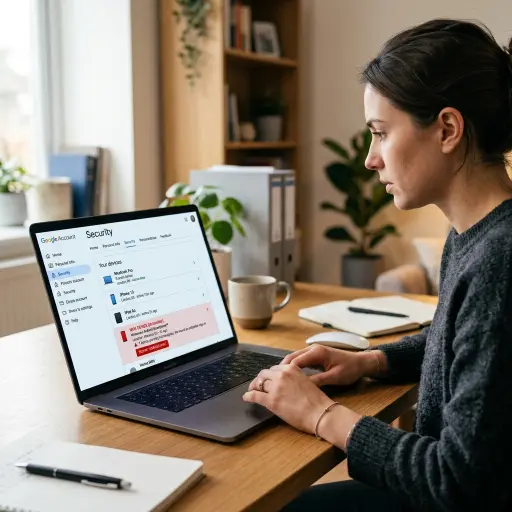

Discovering an unrecognized device connected to your Google Account is a serious security concern. Leaving an unauthorized device logged in grants potential intruders access to your emails, personal photos, saved passwords, and private documents.
Taking immediate action secures your personal information and prevents unauthorized access. Here is how to identify and remove an unknown device from your Google Account across desktop and mobile devices, followed by key steps to lock down your account security.
How to remove an unknown device on desktop
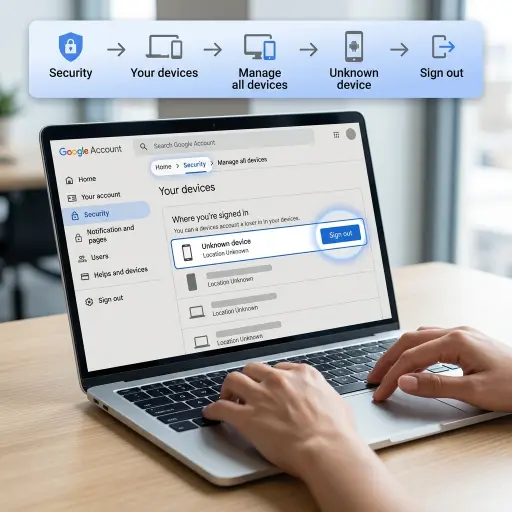
Follow these steps to sign out of a suspicious device using a web browser:
- Go to your Google Account: Visit myaccount.google.com and sign in.
- Open Security: Click Security in the left-hand menu.
- Manage your devices: Scroll to Your devices and select Manage all devices.
- Select the unknown device: Review the list of signed-in devices and choose the one you don’t recognize.
- Sign out: Click Sign out and confirm when prompted.
How to remove an unknown device on mobile (Android & iPhone)
You can also revoke access from your phone or tablet:
- Open Google Account settings:
- Android: Go to Settings → Google → Manage your Google Account.
- iPhone: Open the Google or Gmail app, tap your profile picture, and select Manage your Google Account.
- Tap Security.
- Open your devices: Tap Manage all devices.
- Remove the device: Select the unknown device, tap Sign out, and confirm.
Secure your Google account immediately
Signing out removes the active session, but someone who knows your password may still be able to sign back in. Take these additional steps to protect your account:
1. Change your Google password
Create a strong, unique password you don’t use on any other account.
- Go to Security → Password.
- Update your password immediately.
- Changing your password signs out most existing sessions, helping prevent unauthorized access.
2. Enable two-step verification
Two-Step Verification (2SV) adds an extra layer of security by requiring a second verification method in addition to your password.
- Go to Security → 2-Step Verification.
- Enable the feature.
- Set up Google Prompt, Google Authenticator, or another trusted verification method.
3. Remove suspicious third-party apps
Some unauthorized access comes through connected apps rather than a device:
- Go to Security → Third-party apps with account access.
- Review connected apps.
- Remove any you don’t recognize or no longer use.
4. Run a Google security checkup
Google’s Security Checkup helps identify potential weaknesses in your account.
- Visit myaccount.google.com/security-checkup.
- Follow Google’s recommendations, including reviewing recovery information and recent security activity.
Why an unknown device may appear
Not every unfamiliar device listing indicates that your account has been hacked. Common explanations include:
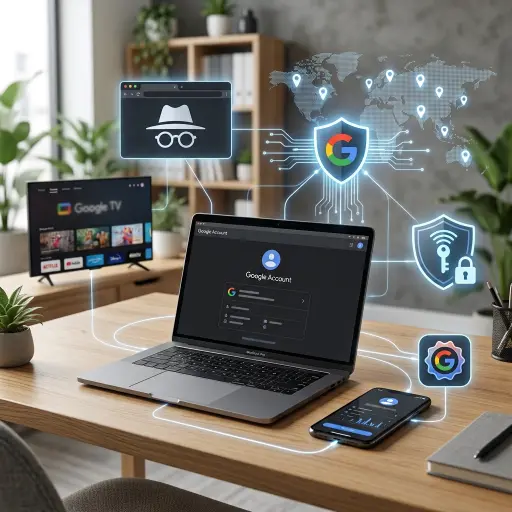
- New browsers or Incognito mode: Signing in through a different browser or a private window can create a separate device session.
- VPN usage: A VPN can make Google display a different location for your device.
- Third-party apps: Email clients, smart TVs, or other connected apps may appear under generic device names.
If you still can’t identify the device after checking these possibilities, assume it’s unauthorized and remove it immediately.
Conclusion
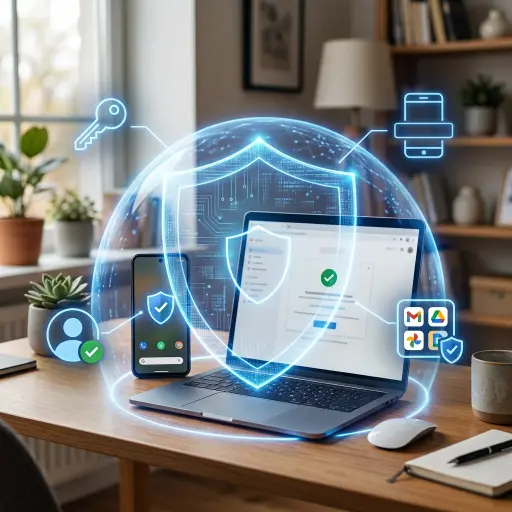
An unknown device connected to your Google Account should never be ignored. Signing the device out takes only a few minutes, but following up with a password change, Two-Step Verification, and a Security Checkup provides much stronger protection against future unauthorized access. Regularly reviewing your signed-in devices is one of the simplest ways to keep your Google Account and personal information secure.
Sources: